Everything for team chat, in one calm place.
Hubs keep conversations organised. Guests see only what you share with them. You choose what reaches you. Here is what MightyChat does today, shown in a real space.
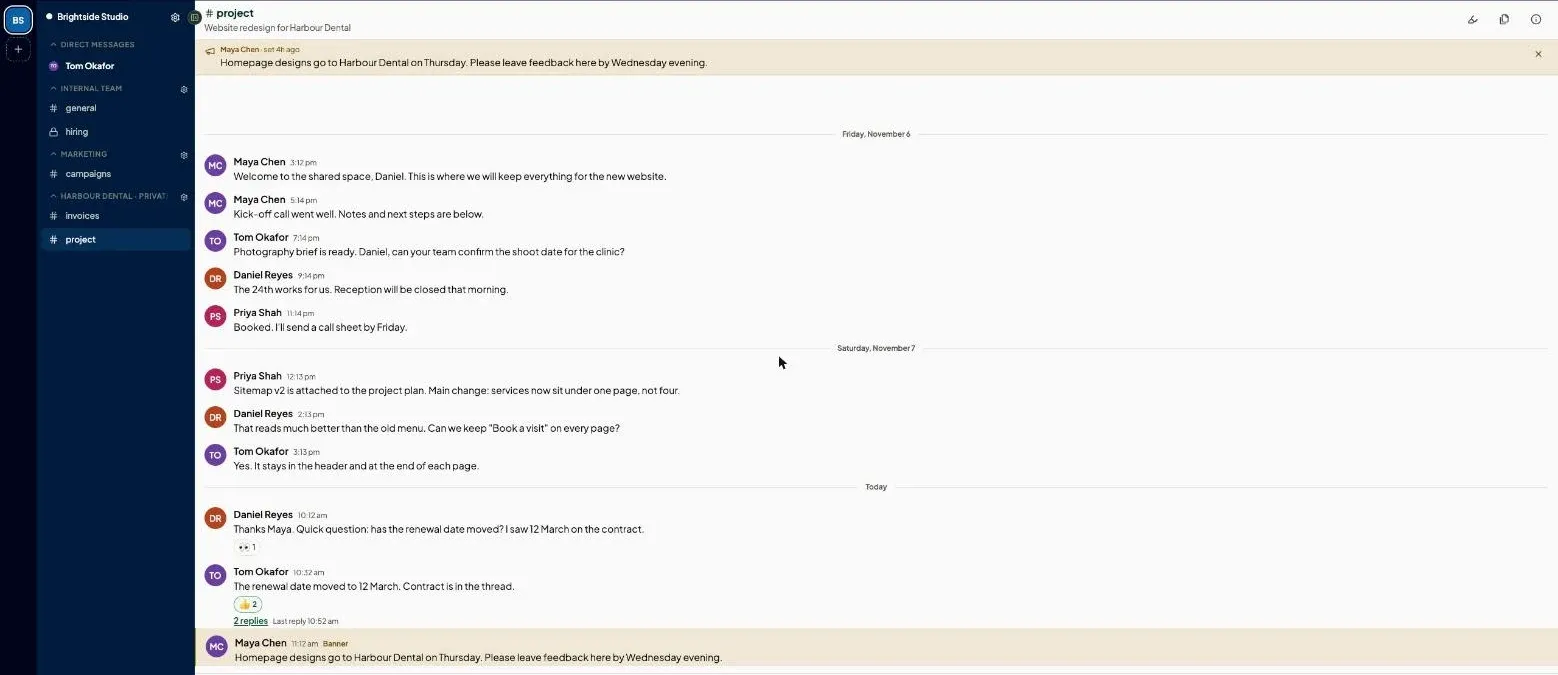
Hubs give every conversation a home.
A hub groups channels by team, function or client. Each hub is public or private, so the sidebar shows people only what is theirs.
- Make a hub for a team, a function or a client, then add channels to it.
- Public hubs are open to everyone in the space except guests. Private hubs are open only to the people you add.
- Channels are public or private, and you can move a channel to another hub at any time.
- A hub can be deleted once it has no channels.
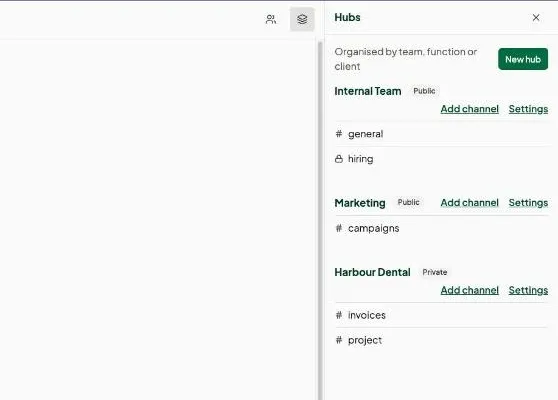
Work with clients without mixing the conversations.
Invite a client as a guest to one hub. They see that hub, and only the people in it.
- Invite a guest by email from a hub's settings. The link works once, and only for that address.
- Guests can do everything a member can in the hubs they're invited to, and can't open any other hub.
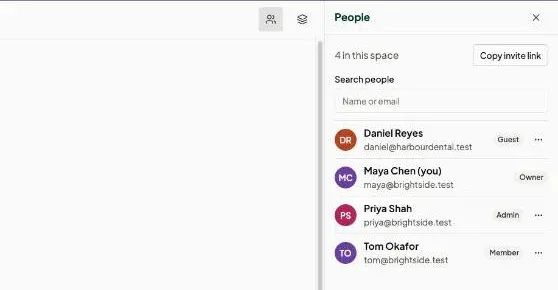
- Space roles are Owner, Admin, Member and Guest.
- Guests are counted separately from your internal members.
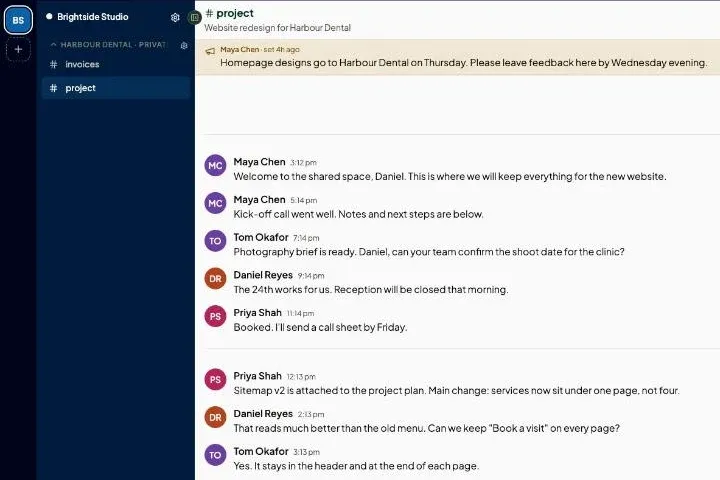
Replies stay with the message they answer.
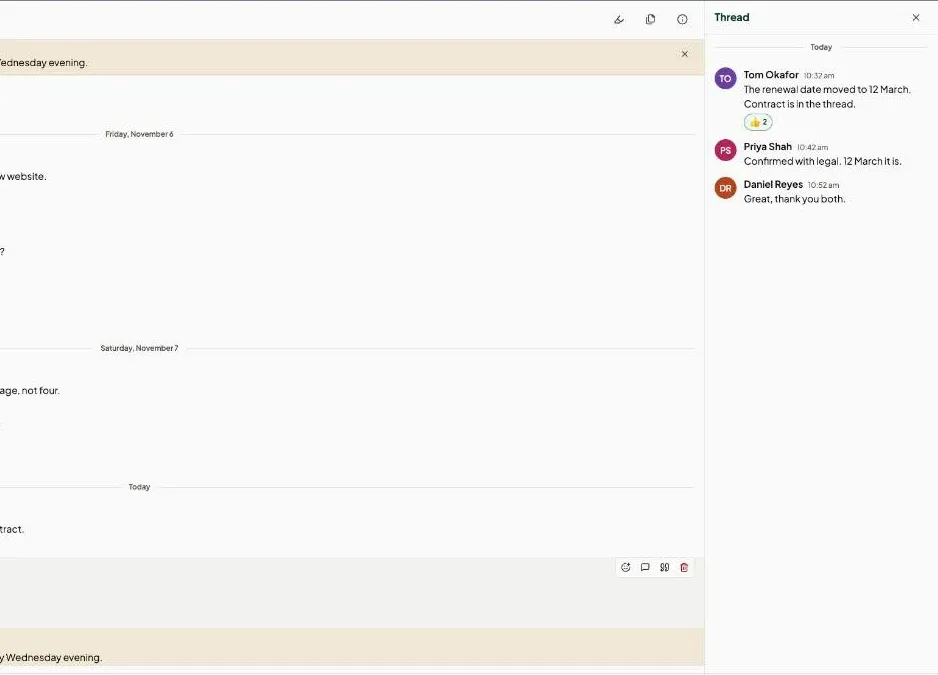
Open a thread beside the channel to keep a side discussion out of the main conversation.
- Every message shows how many replies it has and when the last one arrived.
- The thread opens in a panel next to the channel, so you don't lose your place.
- Reactions, formatting and files work in threads the same way.
Find it later.
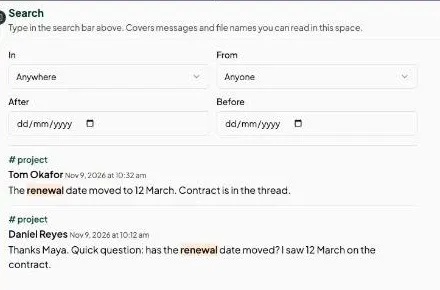
Search covers every message and file name you can read in the space. Words are highlighted in the results, and you can narrow them down.
- Filter by channel, person, and a date range.
- Search from the bar at the top, or press ⌘ K.
- You only see results from places you're allowed to read.
Make the important message stand out.
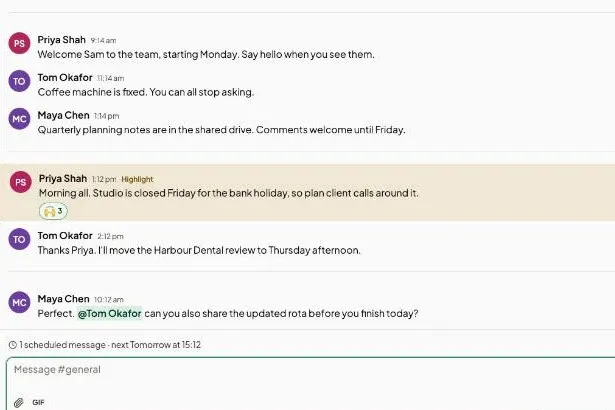
Start a message with ! to send it as a highlight. Start it with !! to pin it as the channel banner.
- Highlights get a colour band, and each channel lists its highlights in one panel.
- A banner stays at the top of the channel until you take it down.
- Mention a person with @, link a channel with #, and add an emoji with :.
- Schedule a message to send later, up to 365 days ahead. Pending ones are listed above the message box.
You decide what reaches you.
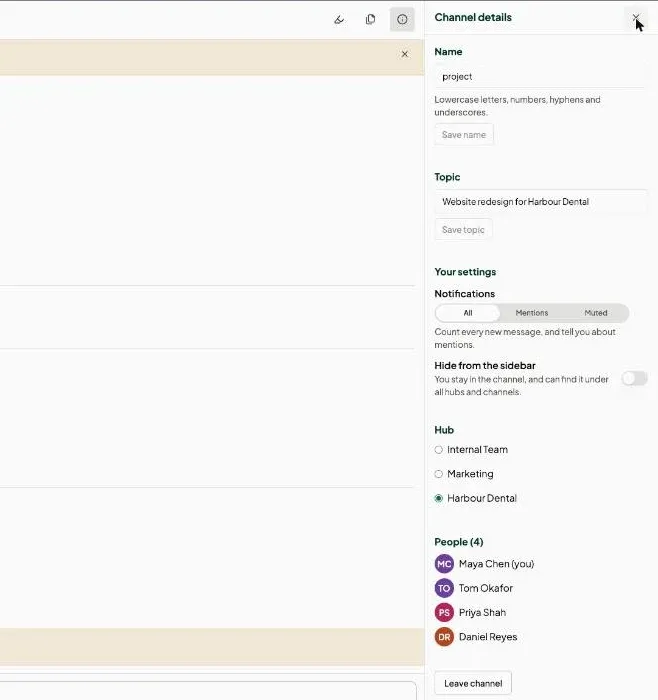
Set each channel to All, Mentions or Muted. Mentions and direct messages always count, unless you mute the channel.
- All counts every new message. Mentions counts only messages that mention you. Muted shows no unread count.
- Hide a channel from your sidebar without leaving it.
- Email only for what you haven't read: direct messages and mentions that are still unread after 10 minutes, and an optional daily summary.
- Emails say where to look and never include what was written.
Say it clearly, and share what you need.
Messages support formatting, code, quotes, files and GIFs, and look the same on every device.
- Bold, italic, strikethrough, links, headings, lists, quotes and inline code.
- Code blocks are coloured when you name the language, for example js, python, sql or json.
- React with emoji, quote a message, and edit or delete your own.
- Attach files up to 10 MB each, up to 10 per message. Images preview in the channel and audio plays inline. Each space has 500 MB of file storage today.
- Search for GIFs with /gif.

Simple to run.
Invite people with a link or by email, and manage who is in the space from one panel.
- Share an invite link that works until you get a new one, or send an email invite that works once.
- Change a person's role, or remove them from the space.
- Name your space, pick a colour and add an icon, so everyone can tell spaces apart.
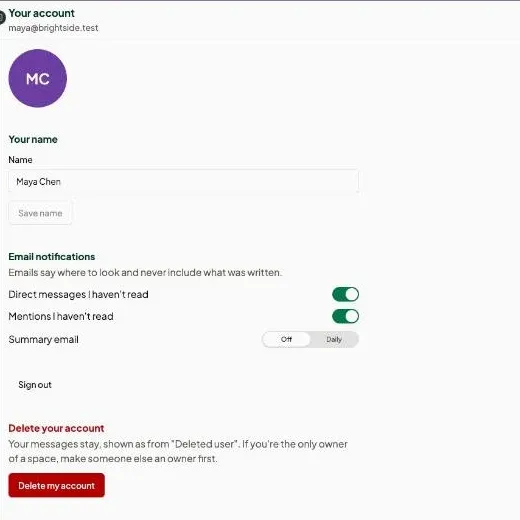
- Anyone can delete their own account. Their messages stay, shown as from a deleted user.
Your own settings.
Choose your name and picture, and decide which emails you get.
- Turn email for unread direct messages and mentions on or off.
- Choose a daily summary email, or turn it off.
Fast for people who type.
Shortcuts for moving around, and a few characters that do something at the start of a word or message. On Windows and Linux, use Ctrl in place of ⌘.
Keyboard
- Search
- ⌘ K
- New message
- ⌘ ⌥ N
- New channel
- ⌘ +
- Hide the sidebar
- ⌘ ←
- Open the sidebar
- ⌘ →
In the message box
- Mention someone
- @
- Link a channel
- #
- Insert an emoji
- :
- Send as a highlight (start of message)
- !
- Send as the channel banner (start of message)
- !!
- Find a GIF, e.g. /gif party
- /gif
Not available yet.
Everything above works today. These are planned, and you shouldn't choose MightyChat for them yet.
- Push notifications
- Notifications today are in the app and by email.
- Group direct messages
- Direct messages are one to one.
- Integrations, API and automation
- Listed on paid plans, not built yet.
- Audit logs and custom roles
- Roles today are owner, admin, member and guest.
- Paid plans
- Free is open to everyone. Paid plans are not on sale yet.
- Desktop and iOS apps
- In development. The web app works in any modern browser.